
 Image 1 of 3
 Image 2 of 3
 Image 3 of 3
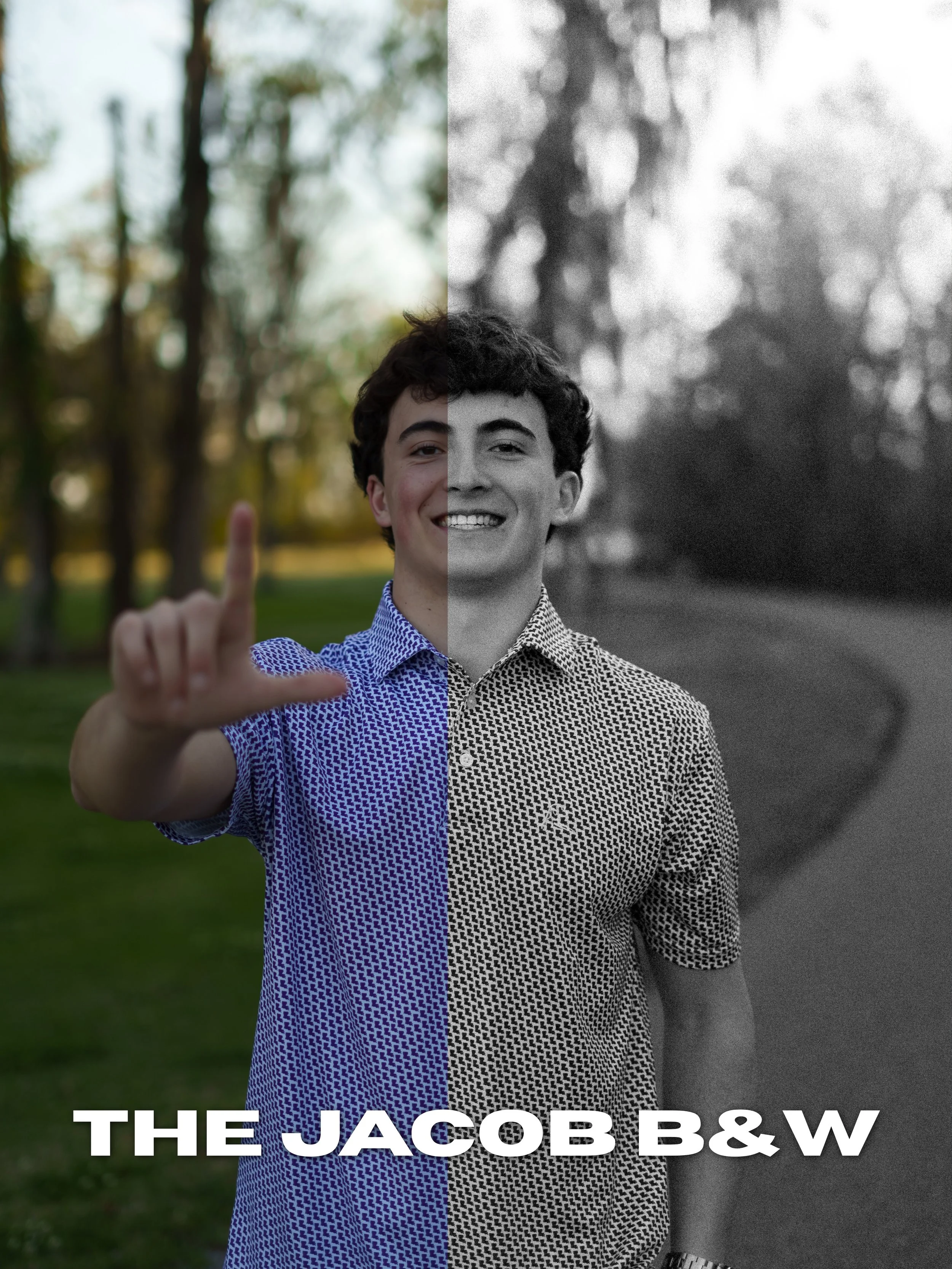
The Jacob Black & White preset creates a bold monochromatic edit with deeper contrast, dramatic tones, and a timeless film-inspired finish. Perfect for creating striking portraits with strong depth and emotion.
Best used for:
Editorial portraits
Sports portraits
Weddings
Moody photography
Black & white storytelling
Includes:
Desktop Lightroom Preset (.XMP)
Mobile Lightroom Preset (.DNG)
Compatible With:
Adobe Lightroom Desktop
Lightroom Mobile
Please Note:
Lighting and image quality will impact final results. Minor adjustments may still be needed after applying the preset.
All sales are final due to the digital nature of this product. All taxes are included in price.
Download and unzip the preset folder.
Open Adobe Lightroom.
Navigate to the Develop tab.
Open the Presets panel.
Click the “+” icon and select “Import Presets.”
Select the included .XMP preset files.
Your presets are now installed and ready to use.
Download and unzip the preset folder on your mobile device.
Open Lightroom Mobile.
Import the included .DNG files into Lightroom.
Open one of the imported preset images.
Tap the three dots in the top corner.
Select “Create Preset.”
Name and save the preset.
Repeat for remaining presets.
Presets work best on RAW images.
Lighting conditions and camera settings may vary.
Minor adjustments to exposure and white balance may still be needed.
The Jacob Black & White preset creates a bold monochromatic edit with deeper contrast, dramatic tones, and a timeless film-inspired finish. Perfect for creating striking portraits with strong depth and emotion.
Best used for:
Editorial portraits
Sports portraits
Weddings
Moody photography
Black & white storytelling
Includes:
Desktop Lightroom Preset (.XMP)
Mobile Lightroom Preset (.DNG)
Compatible With:
Adobe Lightroom Desktop
Lightroom Mobile
Please Note:
Lighting and image quality will impact final results. Minor adjustments may still be needed after applying the preset.
All sales are final due to the digital nature of this product. All taxes are included in price.
Download and unzip the preset folder.
Open Adobe Lightroom.
Navigate to the Develop tab.
Open the Presets panel.
Click the “+” icon and select “Import Presets.”
Select the included .XMP preset files.
Your presets are now installed and ready to use.
Download and unzip the preset folder on your mobile device.
Open Lightroom Mobile.
Import the included .DNG files into Lightroom.
Open one of the imported preset images.
Tap the three dots in the top corner.
Select “Create Preset.”
Name and save the preset.
Repeat for remaining presets.
Presets work best on RAW images.
Lighting conditions and camera settings may vary.
Minor adjustments to exposure and white balance may still be needed.