
Create Better. Shoot Smarter. Build Bigger.
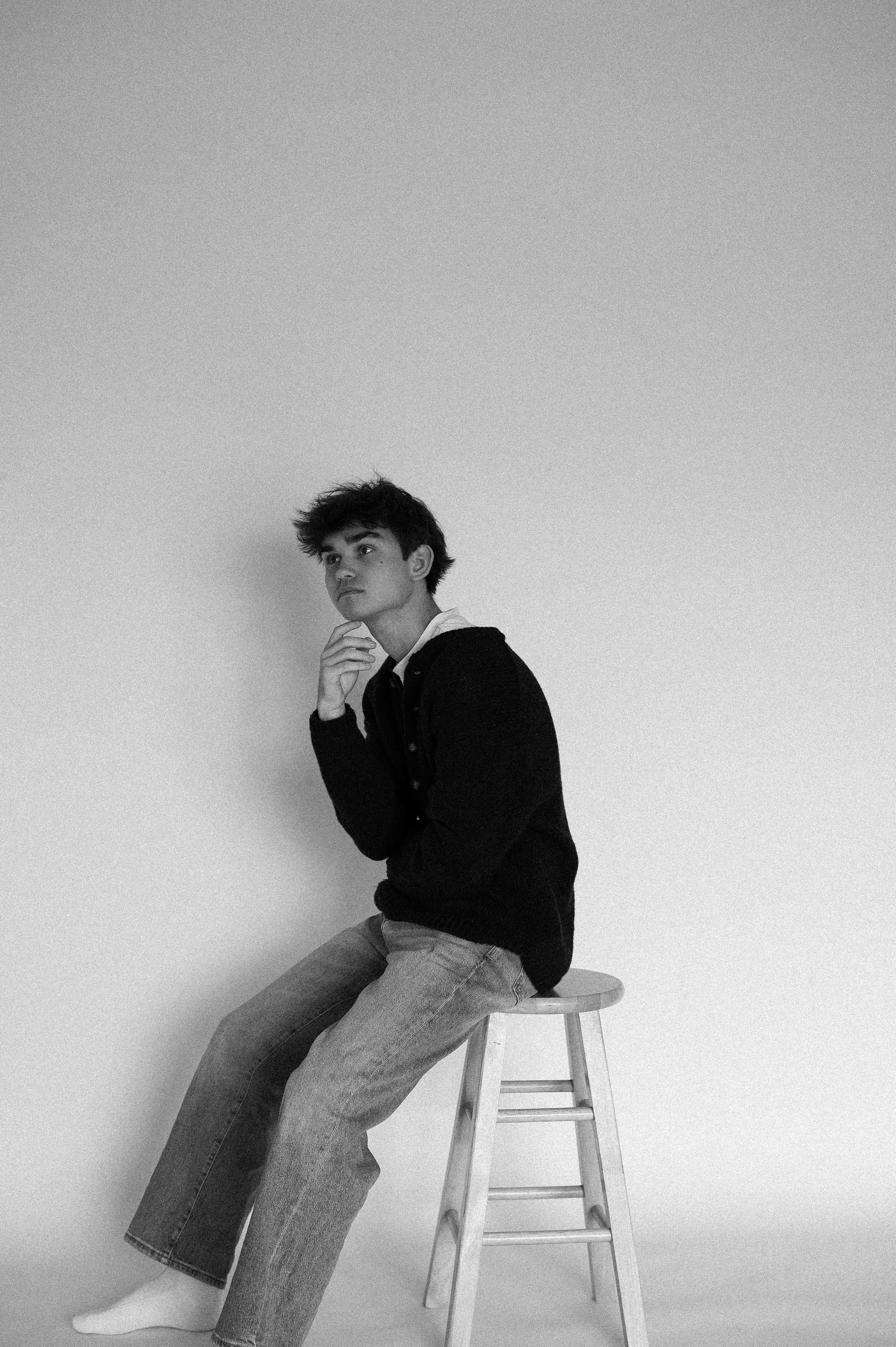
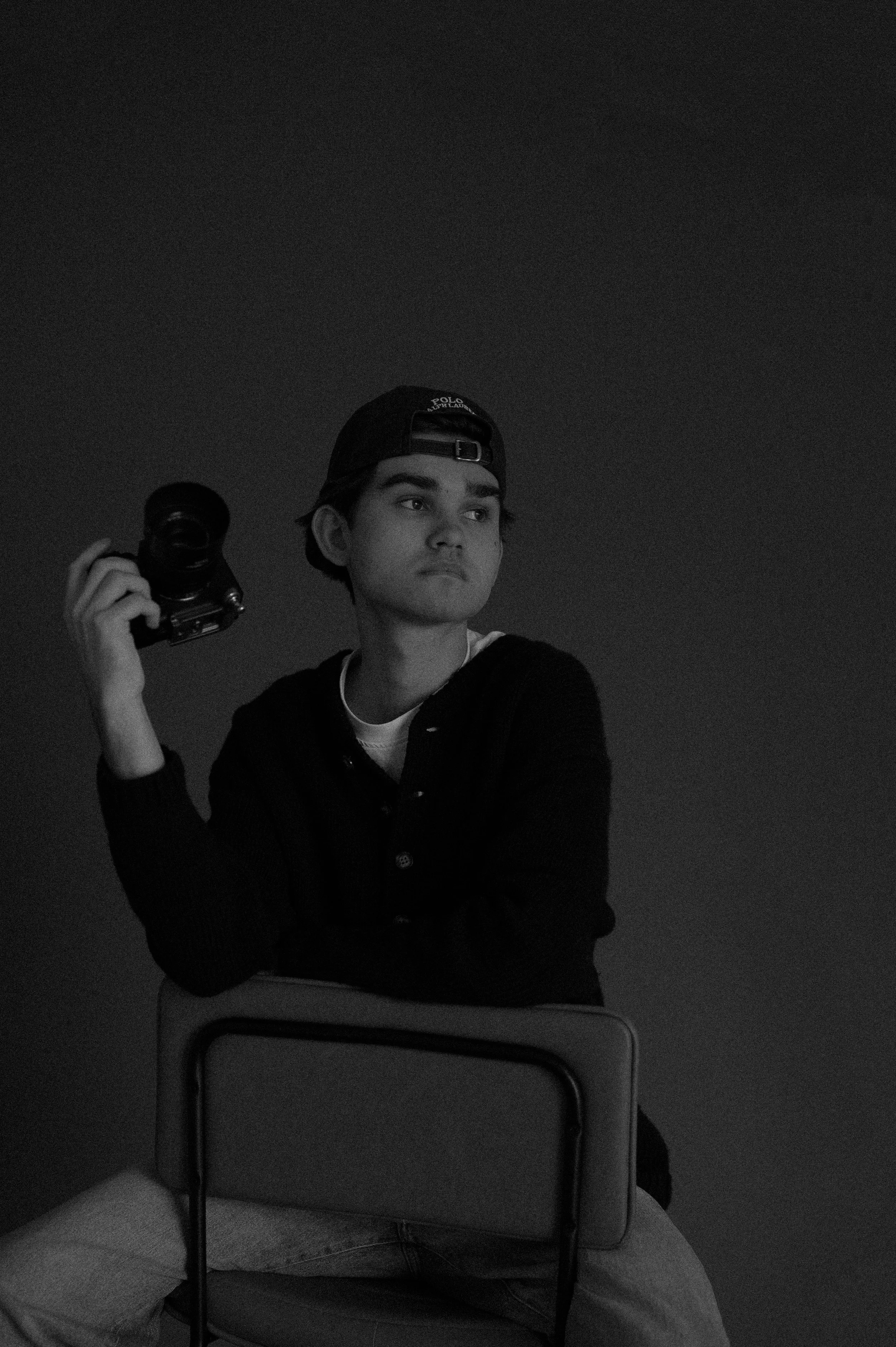
Digital tools, presets, templates, and resources created for photographers, creatives, and modern brands.
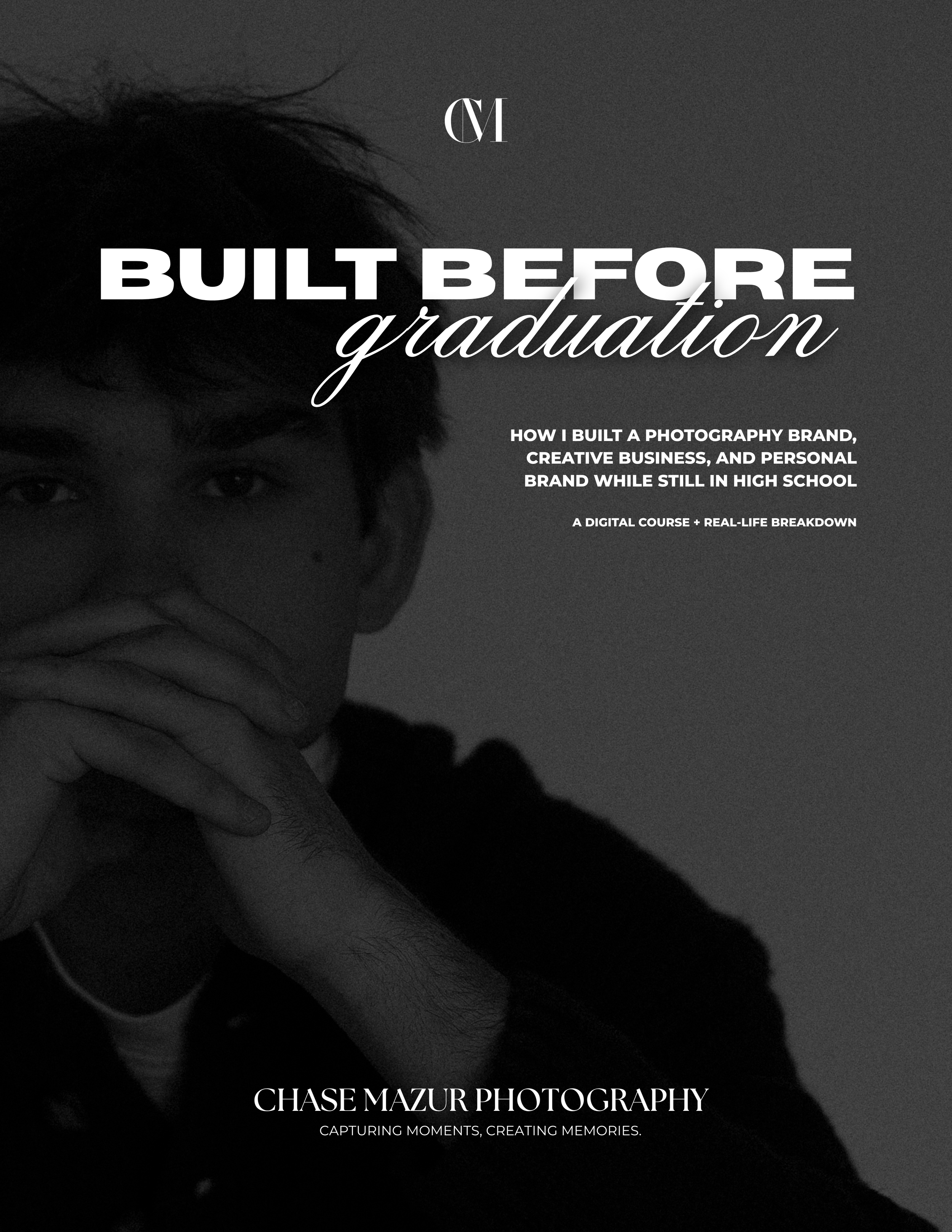
A 70-page digital course and workbook breaking down exactly how I built a photography brand, social media presence, creative business, and recognizable personal brand before graduating high school. Inside, I cover branding, social media growth, behind-the-scenes content strategy, client experience, senior rep teams, monetizing attention, and building a business people actually trust.
..
Built Before Graduation is a digital course and workbook created for photographers, content creators, and young entrepreneurs who want to build a real creative brand while they’re still young.
Over the last few years, I built Chase Mazur Photography LLC from the ground up while balancing high school, social media, clients, leadership roles, sports, life, and everything in between. What started as simply showing up to sports games with a camera turned into a full creative business, multi-million-view social media platform, personal brand, and career path before graduation.
This course is not fake “entrepreneur motivation” or recycled social media advice.
This is the real breakdown of:
• How I started with zero clients
• Building trust before people even book
• Growing a recognizable social media presence
• Creating content that actually converts
• Using behind-the-scenes content strategically
• Building and managing a senior rep team
• Creating a client experience people remember
• Developing a personal brand online
• Turning attention into income
• Digital products, branding, sponsorships, and more
Inside the course, you’ll also get:
• Action-step pages
• Workbook exercises
• Copy-and-paste templates
• Content prompts
• Inquiry response examples
• Rep team templates
• Social media strategy breakdowns
• Real analytics, examples, and experiences
This was created for creatives who are tired of feeling stuck, overlooked, or unsure where to start.
If you’re trying to build something real while still figuring life out in real time, this is for you.
Format: Digital PDF Download
Length: 70 Pages
Includes:
• 7 Core Modules
• Workbook Exercises
• Bonus Templates
• Action Steps
• Branding & Marketing Strategies
• Real-World Examples
Best For:
• Photographers
• Content Creators
• High School Entrepreneurs
• Creative Business Owners
• Personal Brands
• Social Media Creatives
Delivery: Instant Digital Download
All sales are final. Taxes are included in the product price.
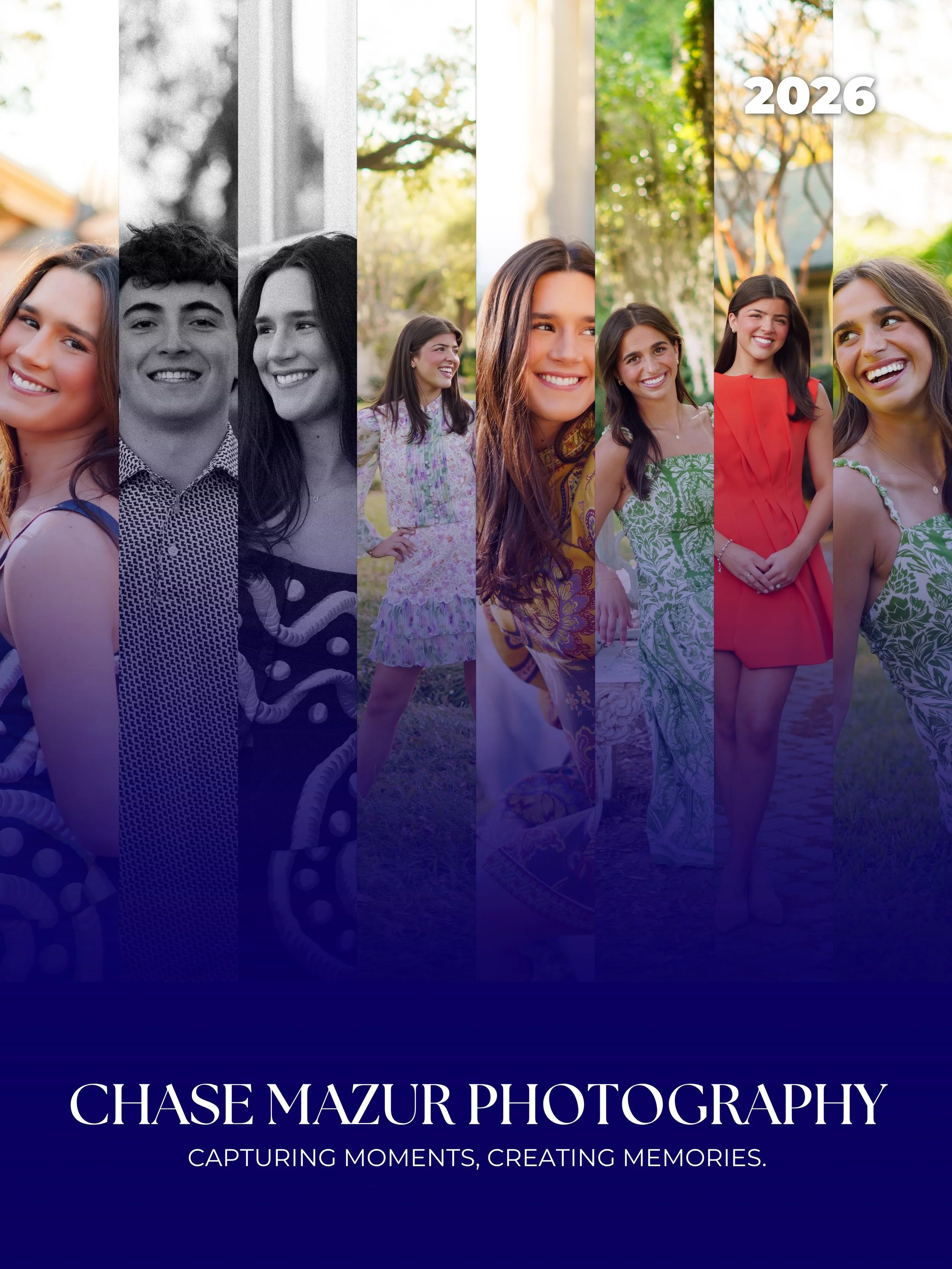
The Chase Mazur Photography 2026 Preset Pack includes the exact presets used throughout my senior portraits, weddings, creative shoots, lifestyle content, and behind-the-scenes edits. Designed to create polished, professional, social-media-ready images while still maintaining natural tones and timeless color.
This collection includes a variety of looks ranging from clean and vibrant edits to dreamy cinematic tones and film-inspired black & white conversions.
Included Presets:
Demi
Demi 2.0
Demi Black & White
Colleen
Colleen 2.0
Sophie
Sophie 2.0
Jacob Black & White
Includes:
8 Desktop Lightroom Presets (.XMP)
8 Mobile Lightroom Presets (.DNG)
Compatible With:
Adobe Lightroom Desktop
Lightroom Mobile
Please Note:
These presets are designed as a starting point and may require minor adjustments depending on lighting, camera settings, skin tones, and environment.
All sales are final due to the digital nature of this product. All taxes are included in price.
Desktop Installation
Download and unzip the preset folder.
Open Adobe Lightroom.
Navigate to the Develop tab.
Open the Presets panel.
Click the “+” icon and select “Import Presets.”
Select the included .XMP preset files.
Your presets are now installed and ready to use.
Mobile Installation
Download and unzip the preset folder on your mobile device.
Open Lightroom Mobile.
Import the included .DNG files into Lightroom.
Open one of the imported preset images.
Tap the three dots in the top corner.
Select “Create Preset.”
Name and save the preset.
Repeat for remaining presets.
Important Information
Presets work best on RAW images.
Lighting conditions and camera settings may vary.
Minor adjustments to exposure and white balance may still be needed.
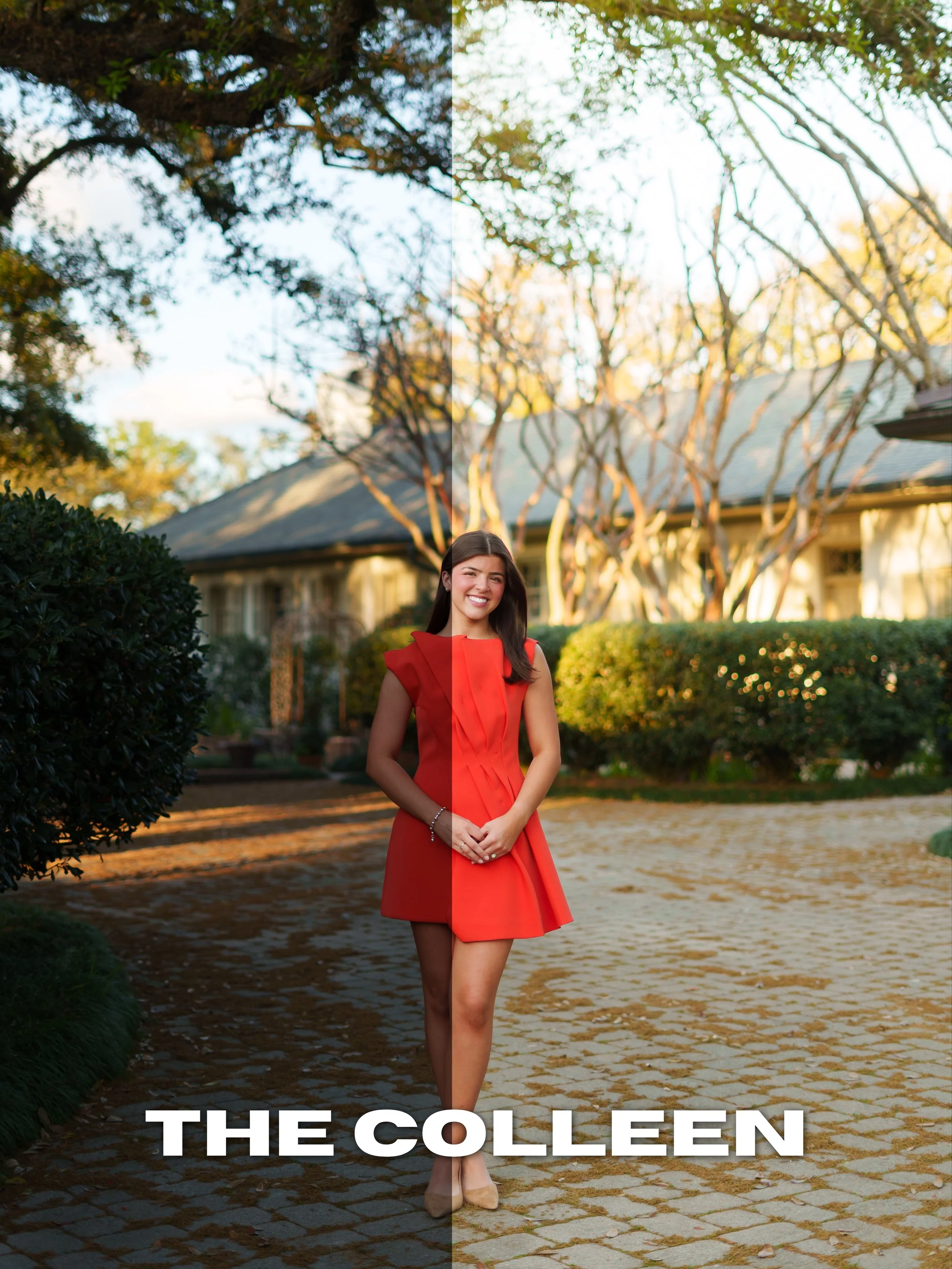
The Colleen preset creates a soft, clean, airy look with natural warmth and subtle depth. Designed for photographers and creators wanting a polished but effortless aesthetic, this preset enhances skin tones while maintaining a bright and dreamy overall feel.
Best used for:
Seniors
Weddings
Couples
Outdoor sessions
Soft natural light
Includes:
Desktop Lightroom Preset (.XMP)
Mobile Lightroom Preset (.DNG)
Compatible With:
Adobe Lightroom Desktop
Lightroom Mobile
Please Note:
Every image is different. Exposure, white balance, and lighting conditions may require slight adjustments after applying the preset.
All sales are final due to the digital nature of this product. All taxes are included in price.
Desktop Installation
Download and unzip the preset folder.
Open Adobe Lightroom.
Navigate to the Develop tab.
Open the Presets panel.
Click the “+” icon and select “Import Presets.”
Select the included .XMP preset files.
Your presets are now installed and ready to use.
Mobile Installation
Download and unzip the preset folder on your mobile device.
Open Lightroom Mobile.
Import the included .DNG files into Lightroom.
Open one of the imported preset images.
Tap the three dots in the top corner.
Select “Create Preset.”
Name and save the preset.
Repeat for remaining presets.
Important Information
Presets work best on RAW images.
Lighting conditions and camera settings may vary.
Minor adjustments to exposure and white balance may still be needed.
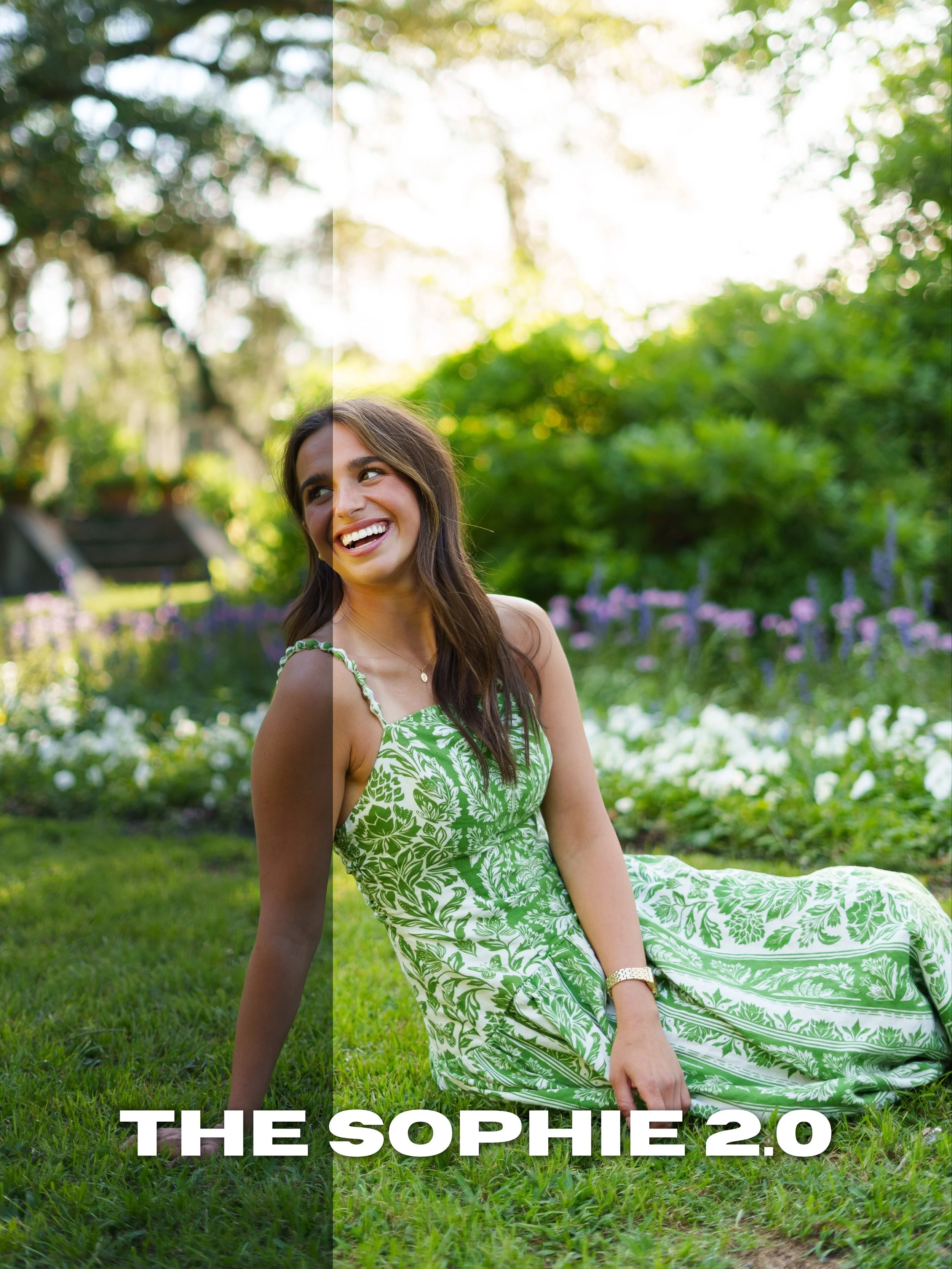
Sophie 2.0 takes the original preset and adds a more refined cinematic feel with richer depth, cleaner highlights, and softer tones. Designed for creators wanting a polished, social-media-ready look while still keeping images natural and timeless.
Best used for:
Portraits
Seniors
Content creation
Flash photography
Lifestyle photography
Includes:
Desktop Lightroom Preset (.XMP)
Mobile Lightroom Preset (.DNG)
Compatible With:
Adobe Lightroom Desktop
Lightroom Mobile
Please Note:
Preset results will vary depending on lighting conditions and camera settings. Minor tweaks may still be required to achieve the desired final look.
All sales are final due to the digital nature of this product. All taxes are included in price.
Desktop Installation
Download and unzip the preset folder.
Open Adobe Lightroom.
Navigate to the Develop tab.
Open the Presets panel.
Click the “+” icon and select “Import Presets.”
Select the included .XMP preset files.
Your presets are now installed and ready to use.
Mobile Installation
Download and unzip the preset folder on your mobile device.
Open Lightroom Mobile.
Import the included .DNG files into Lightroom.
Open one of the imported preset images.
Tap the three dots in the top corner.
Select “Create Preset.”
Name and save the preset.
Repeat for remaining presets.
Important Information
Presets work best on RAW images.
Lighting conditions and camera settings may vary.
Minor adjustments to exposure and white balance may still be needed.
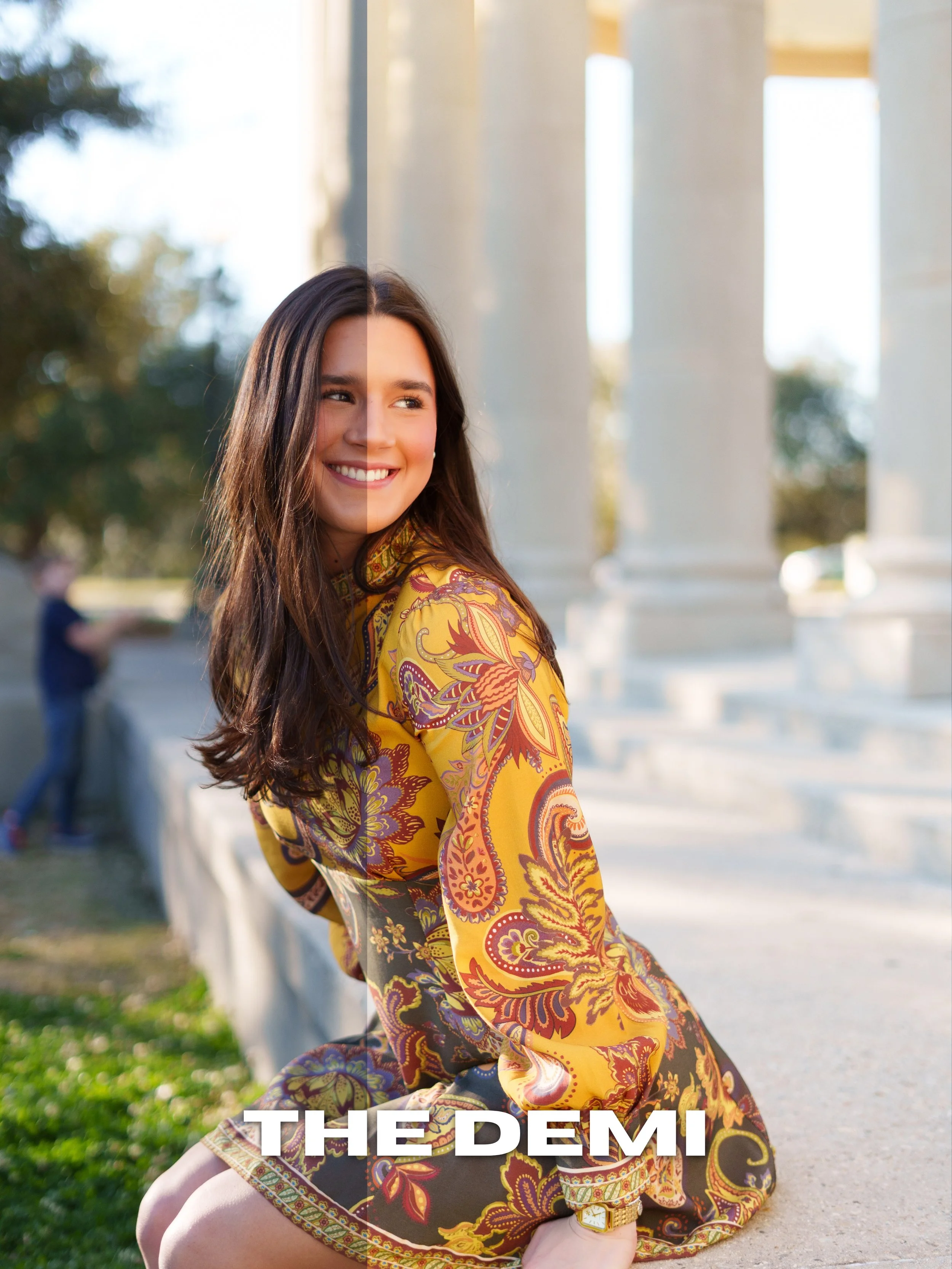
The Demi preset is one of my signature everyday edits designed to create clean, vibrant, true-to-life tones while still maintaining a polished editorial feel. This preset enhances natural lighting, brightens skin tones, deepens colors, and creates a balanced look perfect for seniors, couples, portraits, lifestyle content, and everyday photography.
Best used for:
Outdoor portraits
Golden hour
Seniors
Lifestyle sessions
Natural light photography
Includes:
Desktop Lightroom Preset (.XMP)
Mobile Lightroom Preset (.DNG)
Compatible With:
Adobe Lightroom Desktop
Lightroom Mobile
Please Note:
This preset is designed as a starting point. Lighting, camera settings, skin tones, and environments vary from image to image, so minor adjustments to exposure, temperature, and tint may still be needed for best results.
All sales are final due to the digital nature of this product. All taxes are included in price.
Desktop Installation
Download and unzip the preset folder.
Open Adobe Lightroom.
Navigate to the Develop tab.
Open the Presets panel.
Click the “+” icon and select “Import Presets.”
Select the included .XMP preset files.
Your presets are now installed and ready to use.
Mobile Installation
Download and unzip the preset folder on your mobile device.
Open Lightroom Mobile.
Import the included .DNG files into Lightroom.
Open one of the imported preset images.
Tap the three dots in the top corner.
Select “Create Preset.”
Name and save the preset.
Repeat for remaining presets.
Important Information
Presets work best on RAW images.
Lighting conditions and camera settings may vary.
Minor adjustments to exposure and white balance may still be needed.
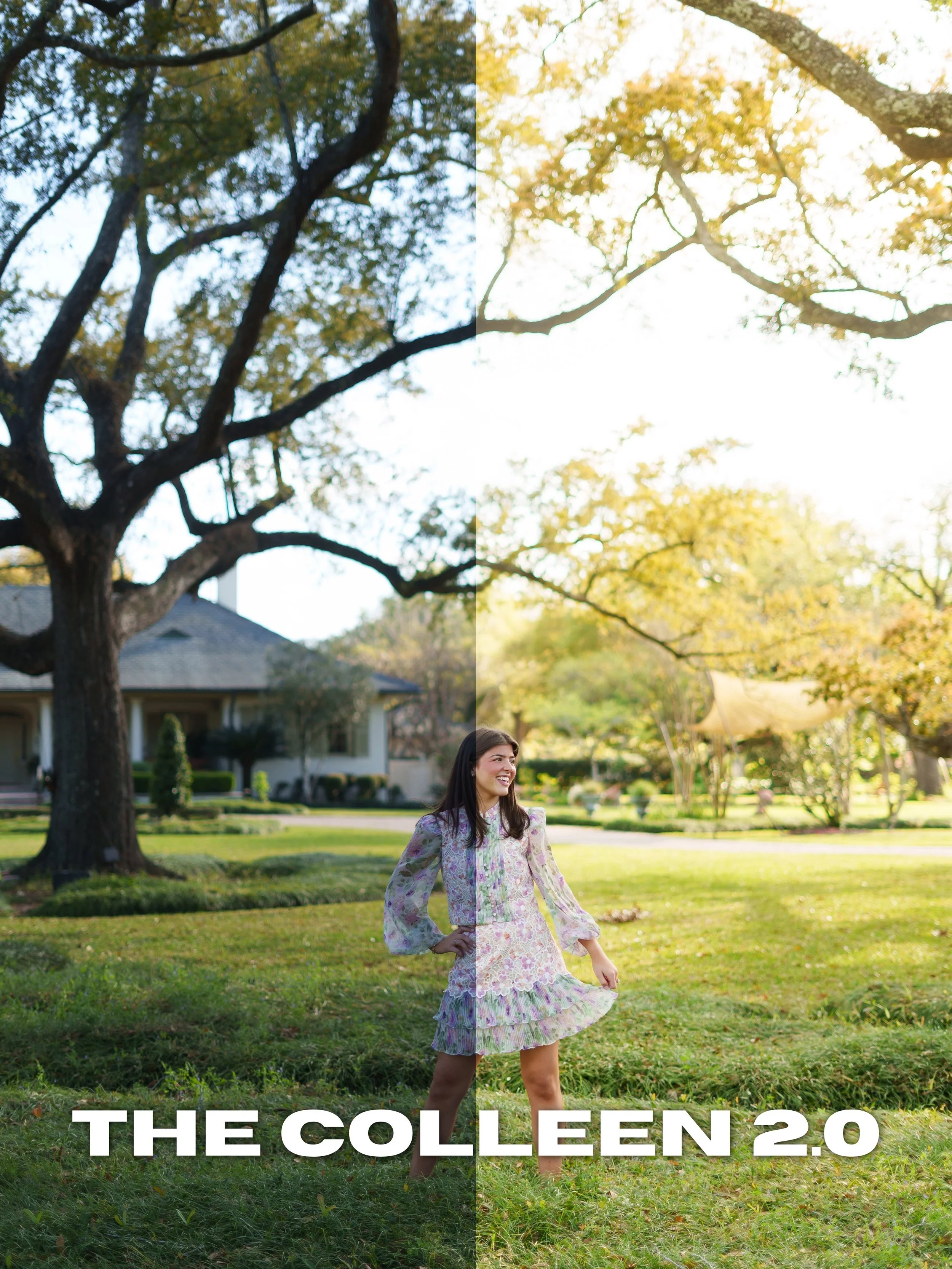
Colleen 2.0 builds off the original preset with an even dreamier and more refined look. Featuring soft highlights, creamy tones, subtle warmth, and a slightly film-inspired finish, this preset is perfect for creating elevated editorial-style portraits with a romantic feel.
Best used for:
Golden hour sessions
Weddings
Seniors
Lifestyle photography
Editorial content
Includes:
Desktop Lightroom Preset (.XMP)
Mobile Lightroom Preset (.DNG)
Compatible With:
Adobe Lightroom Desktop
Lightroom Mobile
Please Note:
Results may vary depending on lighting, camera settings, and image quality. Minor adjustments may still be necessary after applying the preset.
All sales are final due to the digital nature of this product. All taxes are included in price.
Desktop Installation
Download and unzip the preset folder.
Open Adobe Lightroom.
Navigate to the Develop tab.
Open the Presets panel.
Click the “+” icon and select “Import Presets.”
Select the included .XMP preset files.
Your presets are now installed and ready to use.
Mobile Installation
Download and unzip the preset folder on your mobile device.
Open Lightroom Mobile.
Import the included .DNG files into Lightroom.
Open one of the imported preset images.
Tap the three dots in the top corner.
Select “Create Preset.”
Name and save the preset.
Repeat for remaining presets.
Important Information
Presets work best on RAW images.
Lighting conditions and camera settings may vary.
Minor adjustments to exposure and white balance may still be needed.
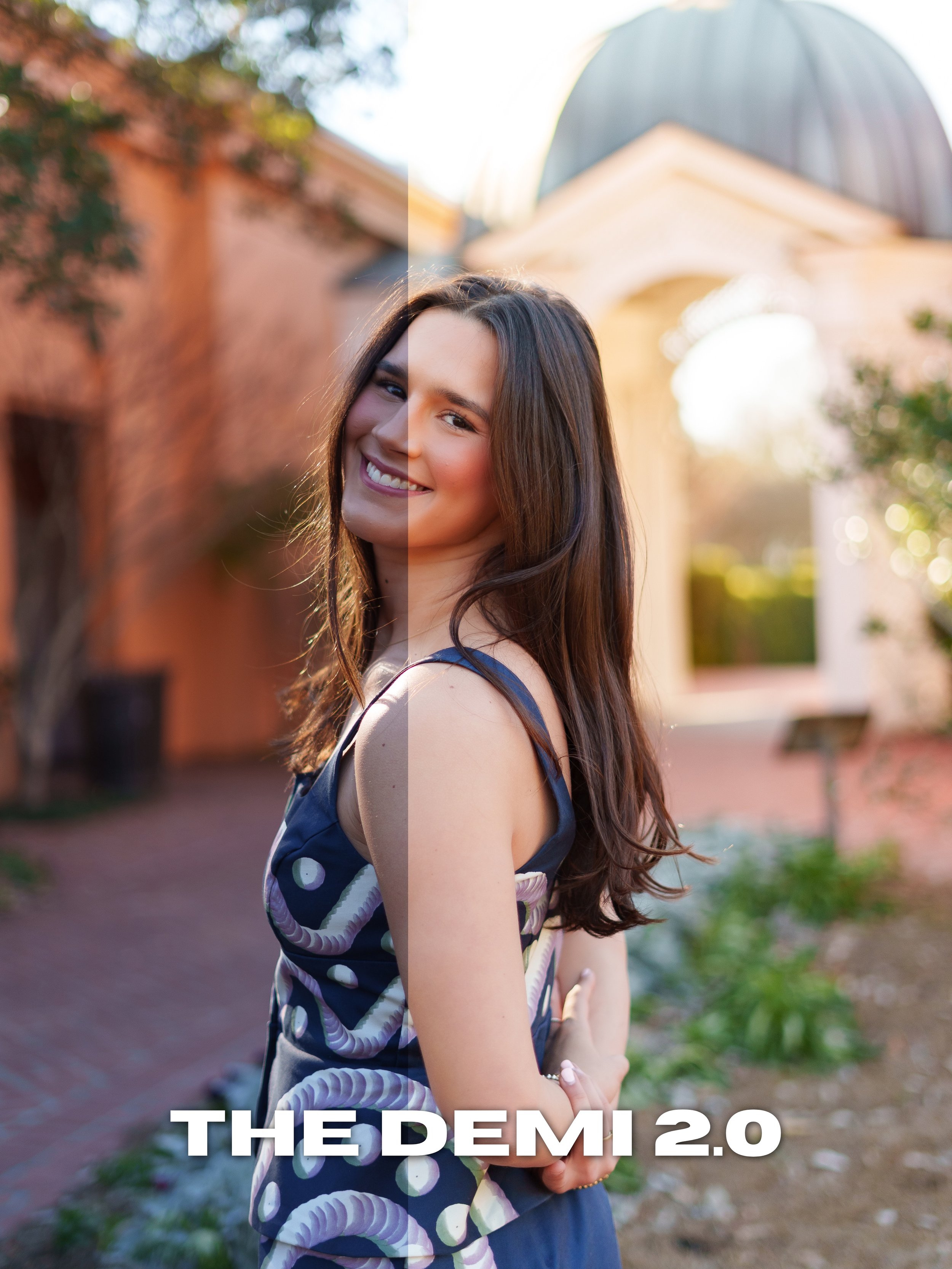
Demi 2.0 is an upgraded version of the original Demi preset featuring richer tones, refined contrast, cleaner highlights, and a more elevated editorial feel. Designed to create vibrant yet balanced images that still feel natural and timeless.
Best used for:
Seniors
Weddings
Portraits
Outdoor sessions
Golden hour photography
Includes:
Desktop Lightroom Preset (.XMP)
Mobile Lightroom Preset (.DNG)
Compatible With:
Adobe Lightroom Desktop
Lightroom Mobile
Please Note:
This preset is designed as a base edit and may require additional adjustments depending on lighting and image conditions.
All sales are final due to the digital nature of this product. All taxes are included in price.
Desktop Installation
Download and unzip the preset folder.
Open Adobe Lightroom.
Navigate to the Develop tab.
Open the Presets panel.
Click the “+” icon and select “Import Presets.”
Select the included .XMP preset files.
Your presets are now installed and ready to use.
Mobile Installation
Download and unzip the preset folder on your mobile device.
Open Lightroom Mobile.
Import the included .DNG files into Lightroom.
Open one of the imported preset images.
Tap the three dots in the top corner.
Select “Create Preset.”
Name and save the preset.
Repeat for remaining presets.
Important Information
Presets work best on RAW images.
Lighting conditions and camera settings may vary.
Minor adjustments to exposure and white balance may still be needed.
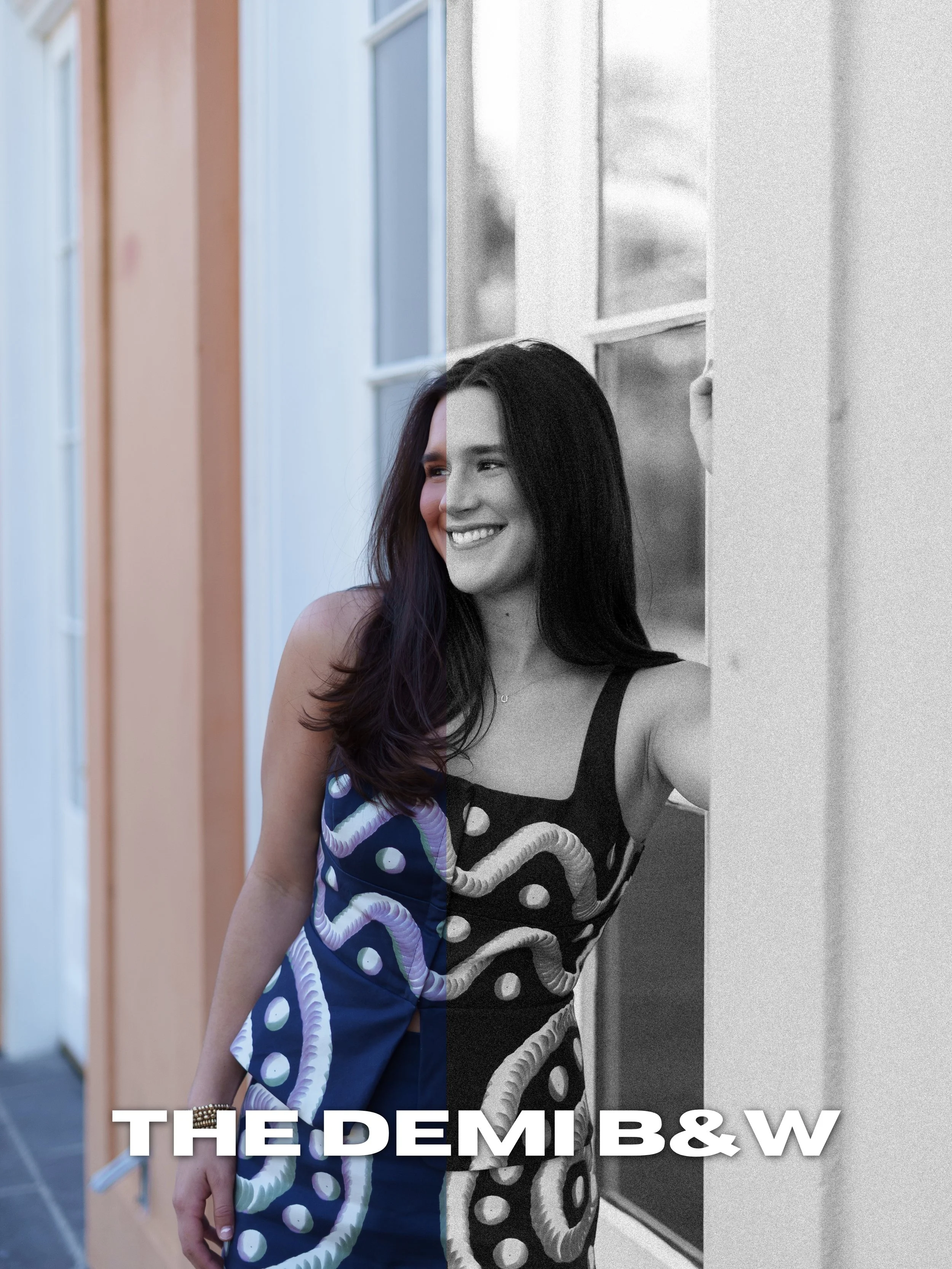
The Demi Black & White preset creates a timeless monochromatic look with soft contrast, film-inspired grain, and rich depth. Designed to give images an emotional and cinematic feel while still keeping skin tones smooth and natural in black and white conversion.
Perfect for:
Editorial portraits
Weddings
Emotional moments
Documentary-style images
Moody storytelling photography
Includes:
Desktop Lightroom Preset (.XMP)
Mobile Lightroom Preset (.DNG)
Compatible With:
Adobe Lightroom Desktop
Lightroom Mobile
Please Note:
This preset works best on well-exposed RAW images. Minor adjustments may still be required depending on lighting and image quality.
All sales are final due to the digital nature of this product. All taxes are included in price.
Desktop Installation
Download and unzip the preset folder.
Open Adobe Lightroom.
Navigate to the Develop tab.
Open the Presets panel.
Click the “+” icon and select “Import Presets.”
Select the included .XMP preset files.
Your presets are now installed and ready to use.
Mobile Installation
Download and unzip the preset folder on your mobile device.
Open Lightroom Mobile.
Import the included .DNG files into Lightroom.
Open one of the imported preset images.
Tap the three dots in the top corner.
Select “Create Preset.”
Name and save the preset.
Repeat for remaining presets.
Important Information
Presets work best on RAW images.
Lighting conditions and camera settings may vary.
Minor adjustments to exposure and white balance may still be needed.
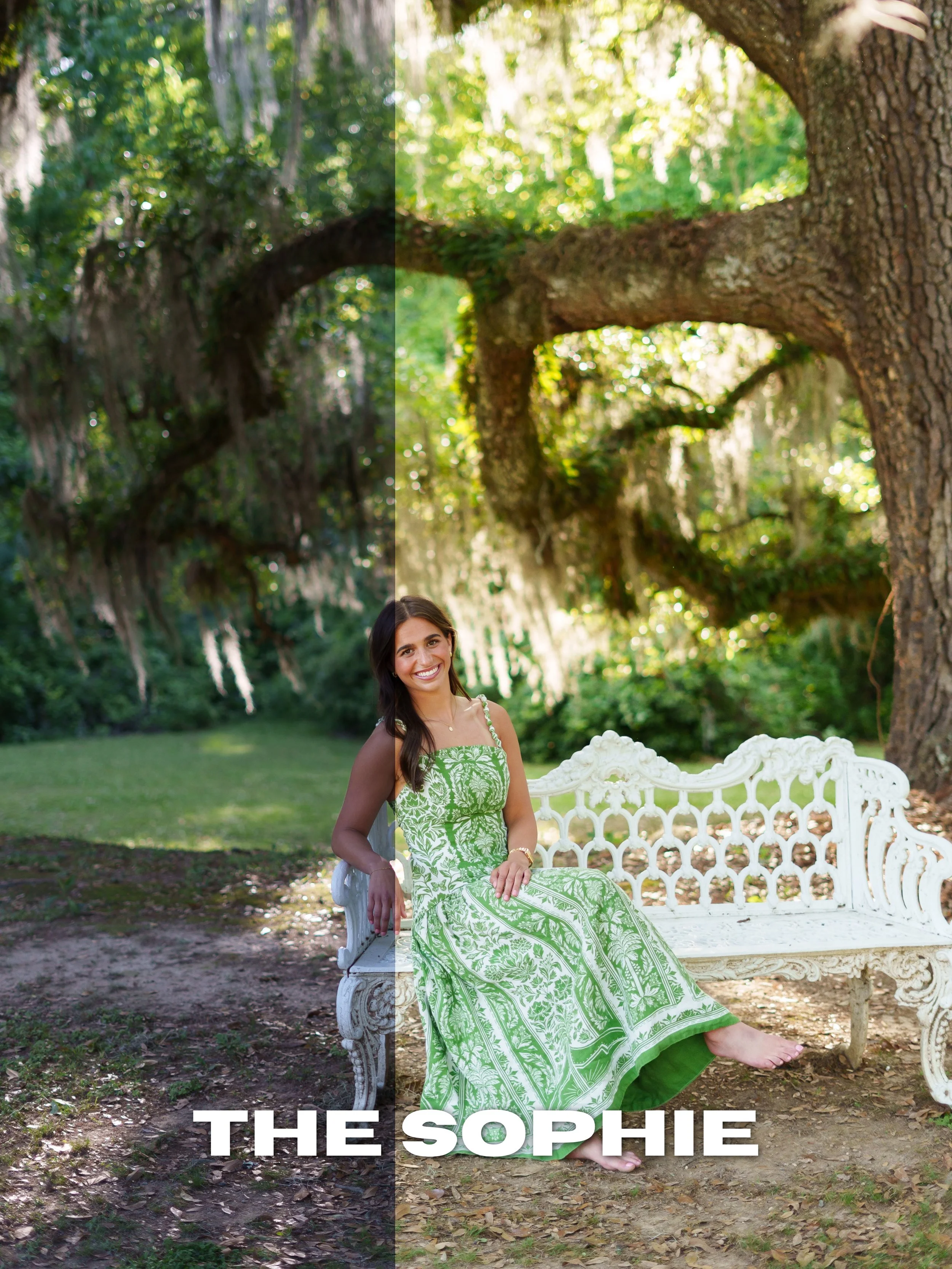
The Sophie preset delivers a clean, modern edit with balanced tones, natural skin color, and subtle contrast. Designed for versatility, this preset works across a wide variety of lighting conditions while still maintaining a polished and professional finish.
Best used for:
Everyday portraits
Seniors
Couples
Flash photography
Lifestyle content
Includes:
Desktop Lightroom Preset (.XMP)
Mobile Lightroom Preset (.DNG)
Compatible With:
Adobe Lightroom Desktop
Lightroom Mobile
Please Note:
This preset is intended to serve as a foundation for your edits. Adjustments to exposure and white balance may still be needed depending on the image.
All sales are final due to the digital nature of this product. All taxes are included in price.
Desktop Installation
Download and unzip the preset folder.
Open Adobe Lightroom.
Navigate to the Develop tab.
Open the Presets panel.
Click the “+” icon and select “Import Presets.”
Select the included .XMP preset files.
Your presets are now installed and ready to use.
Mobile Installation
Download and unzip the preset folder on your mobile device.
Open Lightroom Mobile.
Import the included .DNG files into Lightroom.
Open one of the imported preset images.
Tap the three dots in the top corner.
Select “Create Preset.”
Name and save the preset.
Repeat for remaining presets.
Important Information
Presets work best on RAW images.
Lighting conditions and camera settings may vary.
Minor adjustments to exposure and white balance may still be needed.
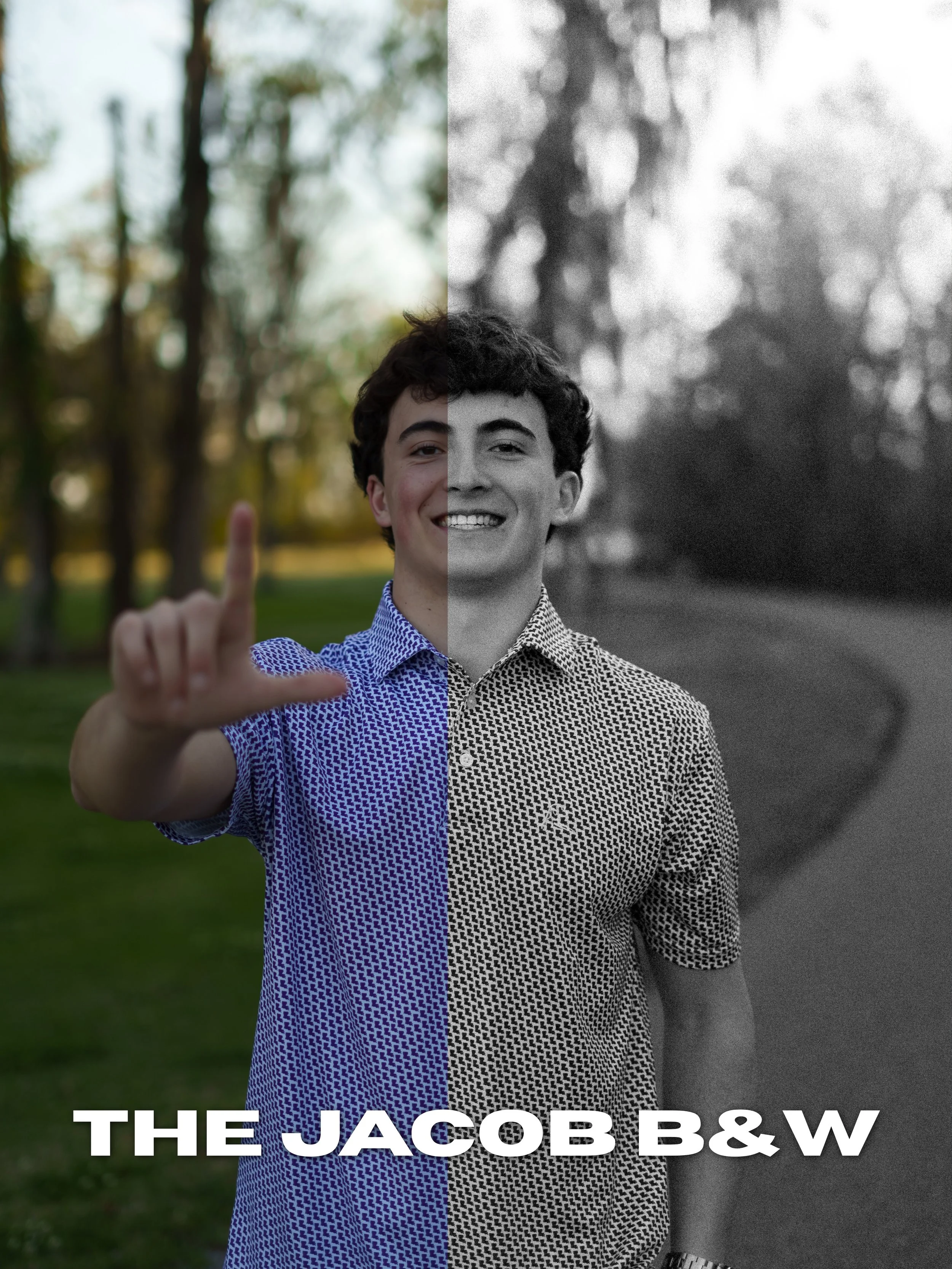
The Jacob Black & White preset creates a bold monochromatic edit with deeper contrast, dramatic tones, and a timeless film-inspired finish. Perfect for creating striking portraits with strong depth and emotion.
Best used for:
Editorial portraits
Sports portraits
Weddings
Moody photography
Black & white storytelling
Includes:
Desktop Lightroom Preset (.XMP)
Mobile Lightroom Preset (.DNG)
Compatible With:
Adobe Lightroom Desktop
Lightroom Mobile
Please Note:
Lighting and image quality will impact final results. Minor adjustments may still be needed after applying the preset.
All sales are final due to the digital nature of this product. All taxes are included in price.
Desktop Installation
Download and unzip the preset folder.
Open Adobe Lightroom.
Navigate to the Develop tab.
Open the Presets panel.
Click the “+” icon and select “Import Presets.”
Select the included .XMP preset files.
Your presets are now installed and ready to use.
Mobile Installation
Download and unzip the preset folder on your mobile device.
Open Lightroom Mobile.
Import the included .DNG files into Lightroom.
Open one of the imported preset images.
Tap the three dots in the top corner.
Select “Create Preset.”
Name and save the preset.
Repeat for remaining presets.
Important Information
Presets work best on RAW images.
Lighting conditions and camera settings may vary.
Minor adjustments to exposure and white balance may still be needed.